Quickstart
This page walks you through a minimal, complete WAH-i workflow: from launching the app to obtaining an optimised microphone geometry and exporting results.
All versions of WAH-i (Windows, macOS, MATLAB) run the same optimiser core. Differences in confirmed appearance may arise due to font availability or screen resolution, but results are identical.
1) Launch WAH-i
- Deployed app: open WAH-i from the Applications / Start menu.
- MATLAB: run:
wahi_gui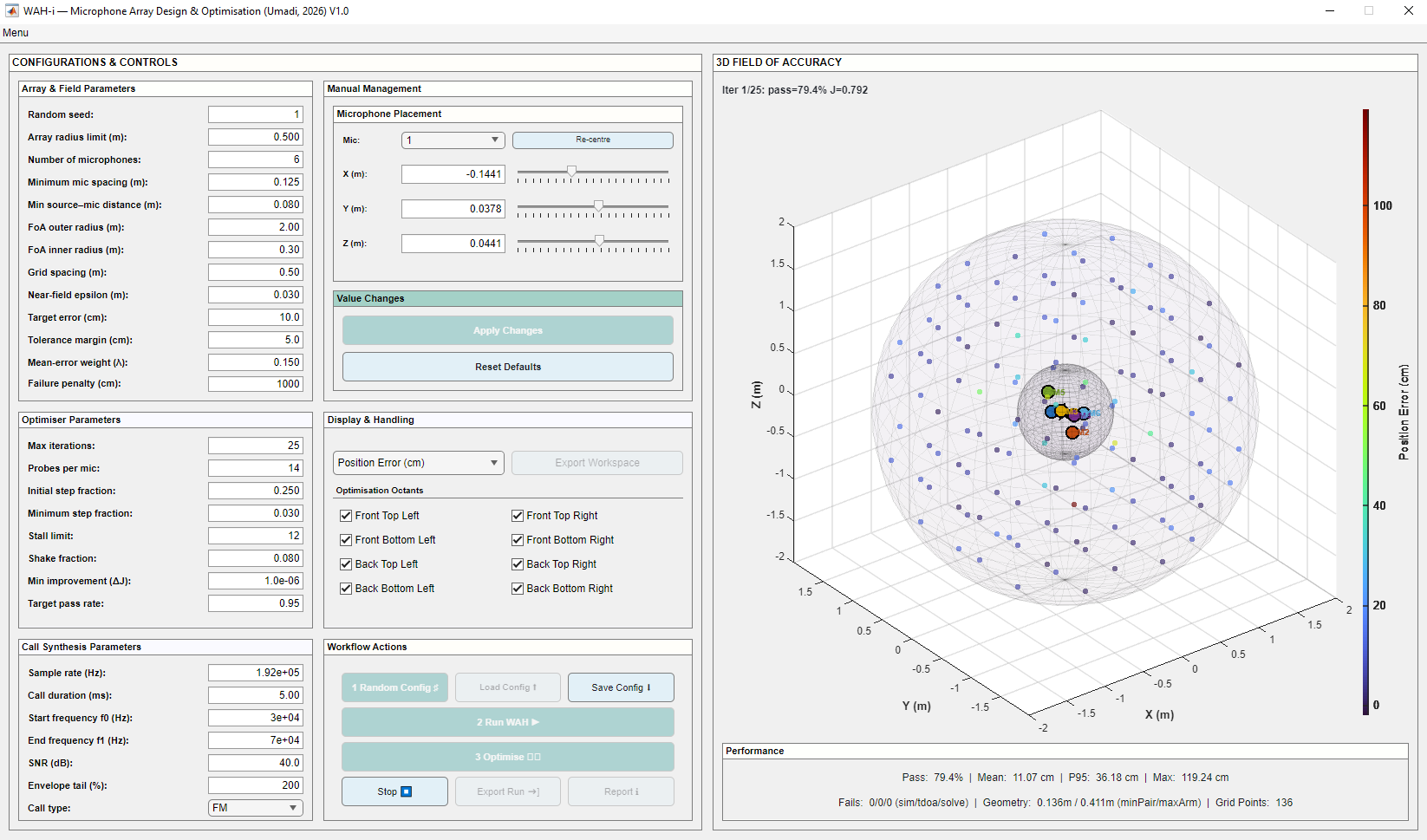
Installed App: Launching WAH-i on Windows / macOS. The app window is fixed-size to ensure a consistent layout across platforms.
Note
The deployed app window is intentionally non-resizable to maintain a consistent panel layout. Advanced users can customise layout behaviour when running from MATLAB.
2) Create or load a microphone geometry
You can start from scratch or reuse an existing configuration:
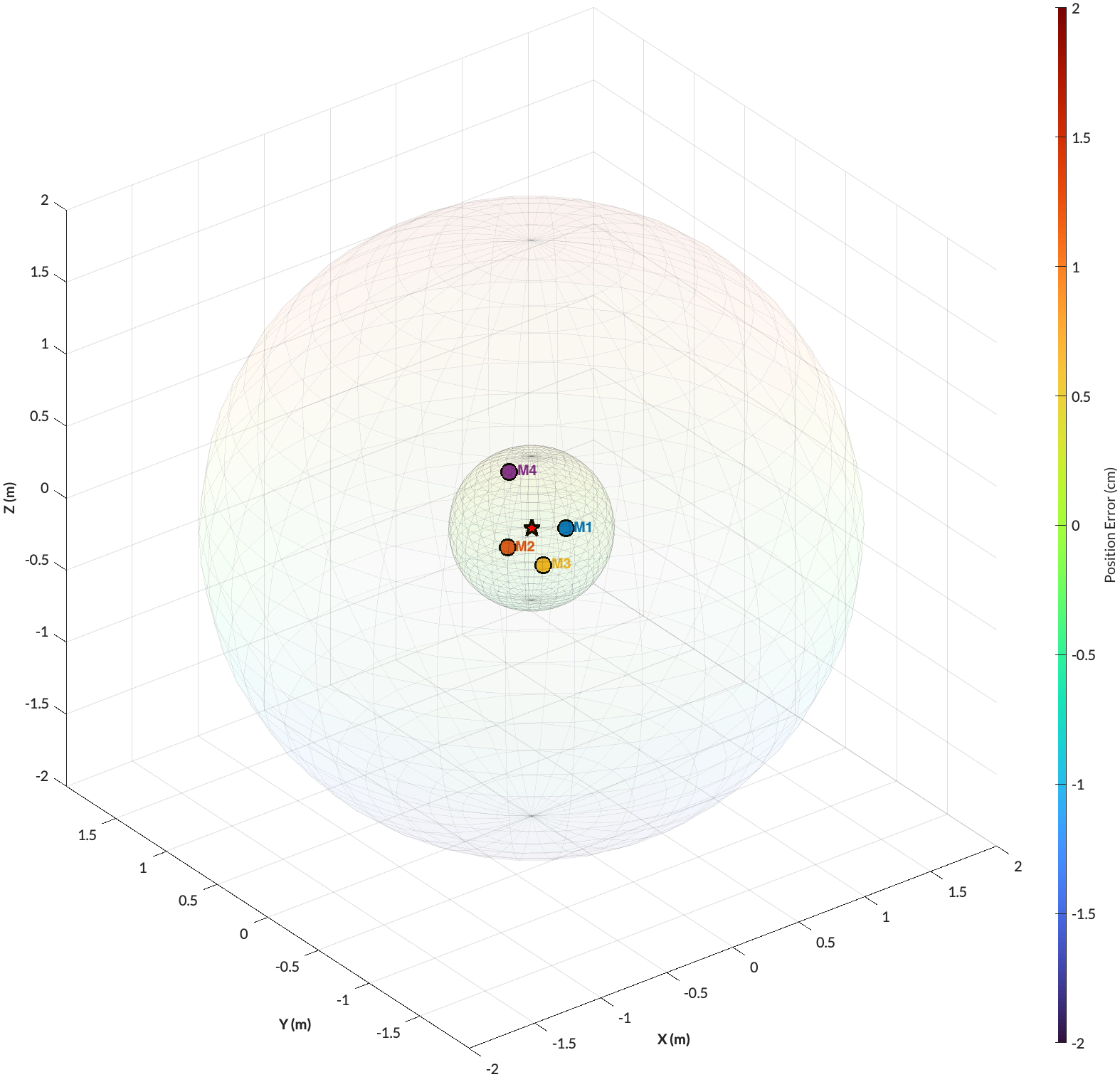
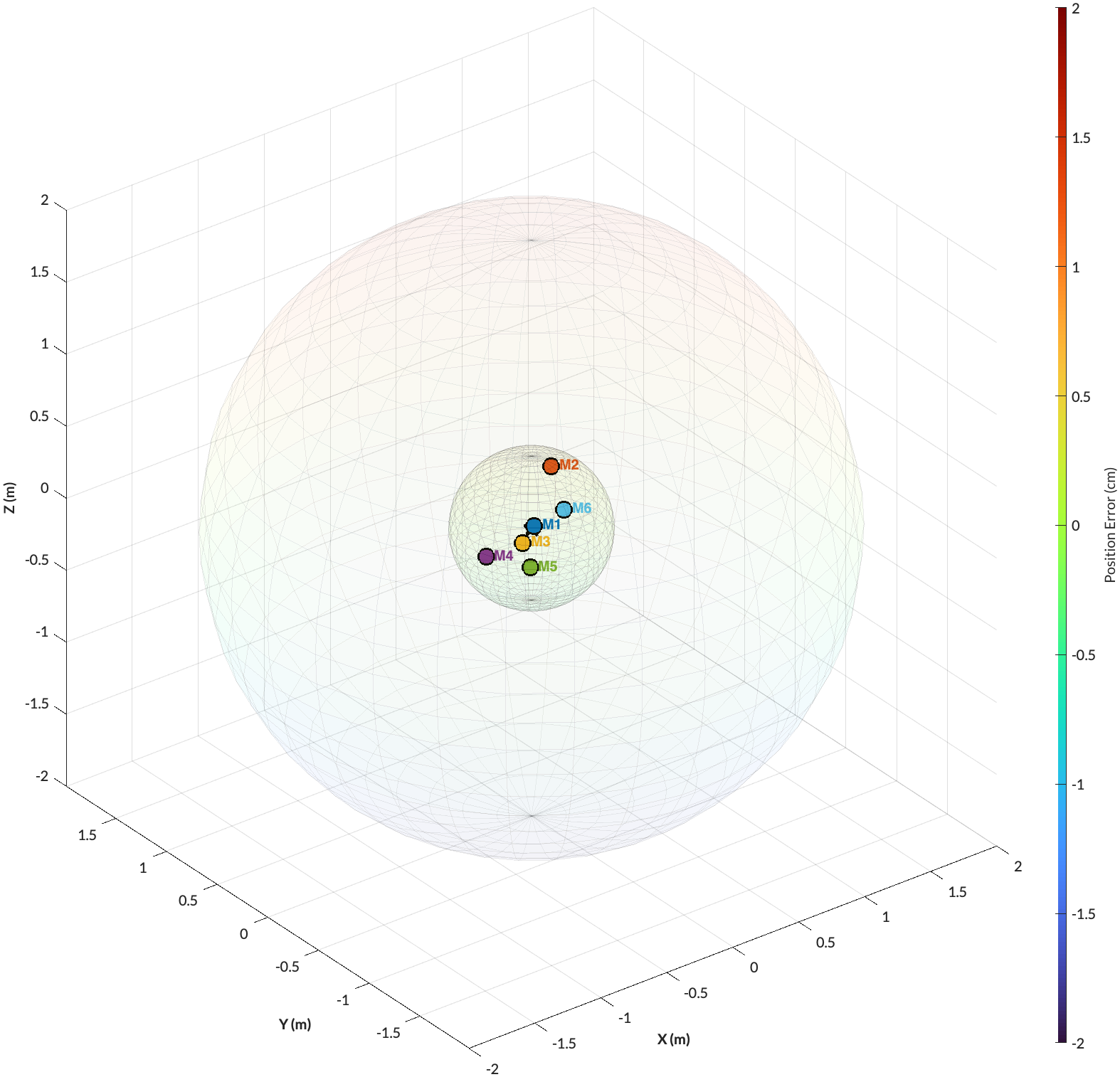
- Random Config Generates a random geometry for the selected number of microphones.
- Load Config Loads a previously saved geometry from CSV, automatically updating the display.
The Random Seed ensures reproducibility: using the same seed will generate the same random geometry and optimisation trajectory.
Tip
Loading a previously “good enough” configuration is an effective way to refine designs in stages and compare alternatives.
3) Define the Field of Accuracy (FoA)
The Field of Accuracy (FoA) specifies where in space localisation performance is evaluated and optimised. Rather than optimising uniformly over all directions and distances, WAH-i allows you to focus computational effort on the regions that matter most for your task.
In Array & Field Parameters, set:
-
FoA outer radius (R) and inner radius (Rin) to define the spatial shell of interest
- Grid spacing, starting coarse for exploration and refining later for precision
- Minimum source–microphone distance to avoid near-field degeneracies and unstable solutions
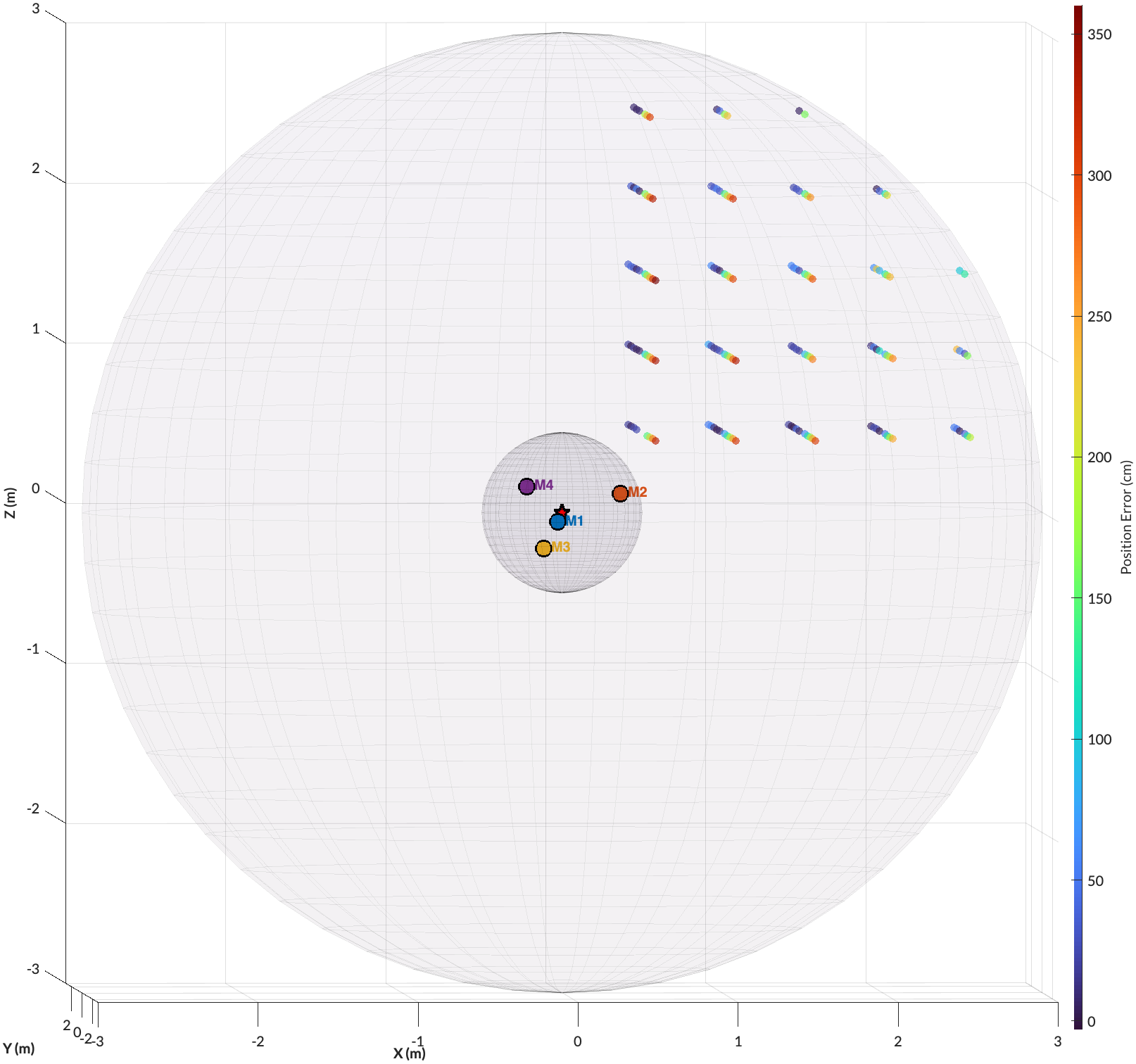
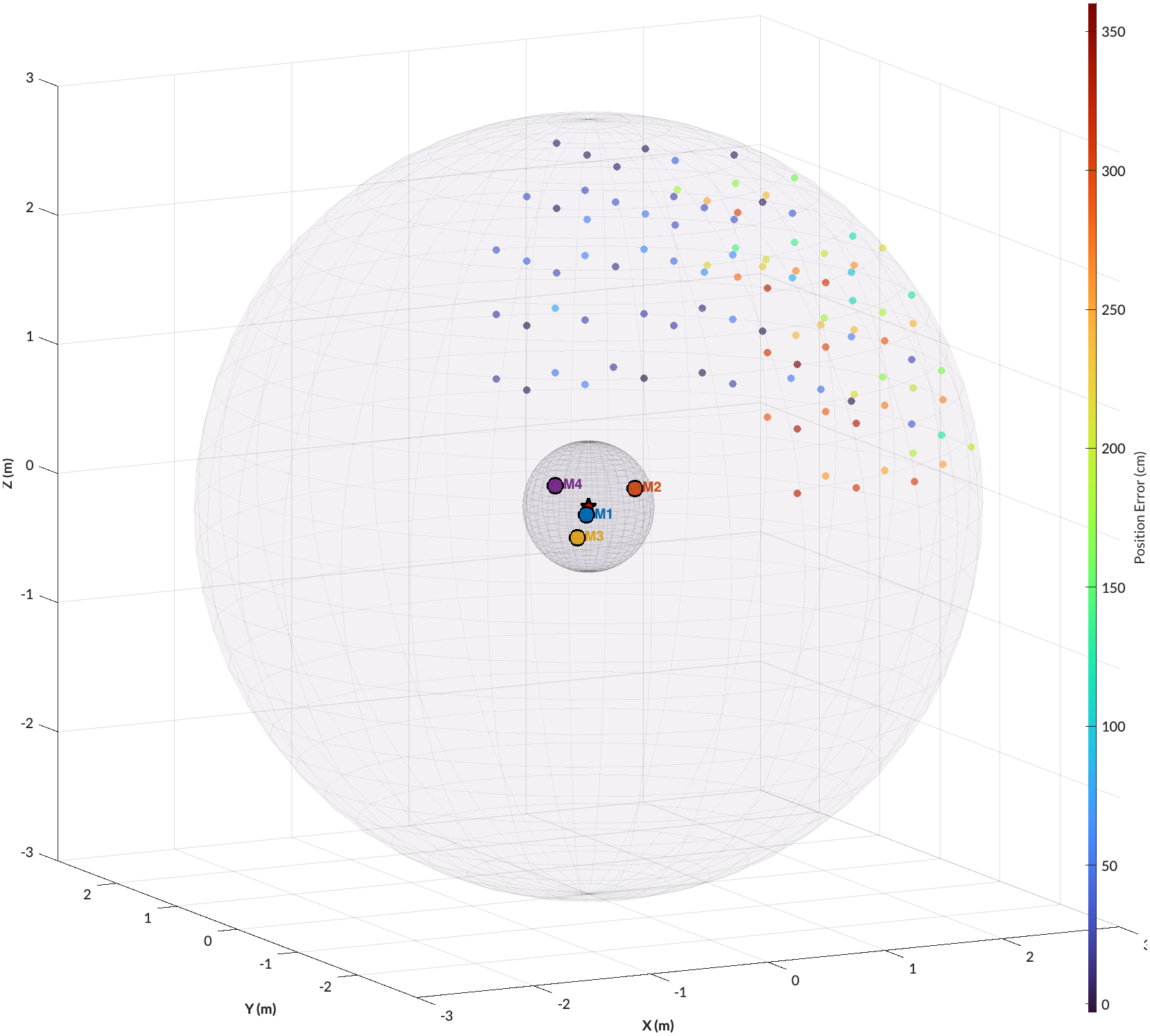
In addition, the octant selection checkboxes allow you to restrict optimisation to specific spatial sectors (e.g. front-facing, elevated, or lateral regions). Combined with tailored inner/outer radius ranges, this provides a powerful way to custom-define the spatial regions that matter for your experiment or deployment.
This is particularly useful when:
- Targets are expected only in a known sector (e.g. forward flight, ground-facing arrays)
- Certain regions are mechanically inaccessible or irrelevant
- You want to trade global coverage for higher accuracy in a restricted volume
Once these parameters are set, click Apply Changes to commit the FoA definition before running or optimising.
Example FoA Configurations
Important
Any change to geometry or field parameters requires clicking
Apply Changesbefore running evaluation or optimisation.
4) Evaluate the baseline geometry
Click Run WAH ▶︎. Apply the Widefield Acoustics Heuristics algorithm to estimate the spatial accuracy at given grid points. (Read the paper)
WAH-i evaluates localisation performance across the FoA and displays:
- 3D colour-coded accuracy field
- Summary metrics: Pass rate, Mean, P95, Max error
This baseline evaluation provides a reference for judging optimisation gains.
5) Optimise the geometry
Click Optimise ᯓ★.
For best results:
- Start with coarse grid resolution. Increasing grid resolution adds computational costs.
- Use conservative step sizes
- Increase accuracy thresholds gradually
See Optimisation tips for detailed guidance on staged optimisation strategies.
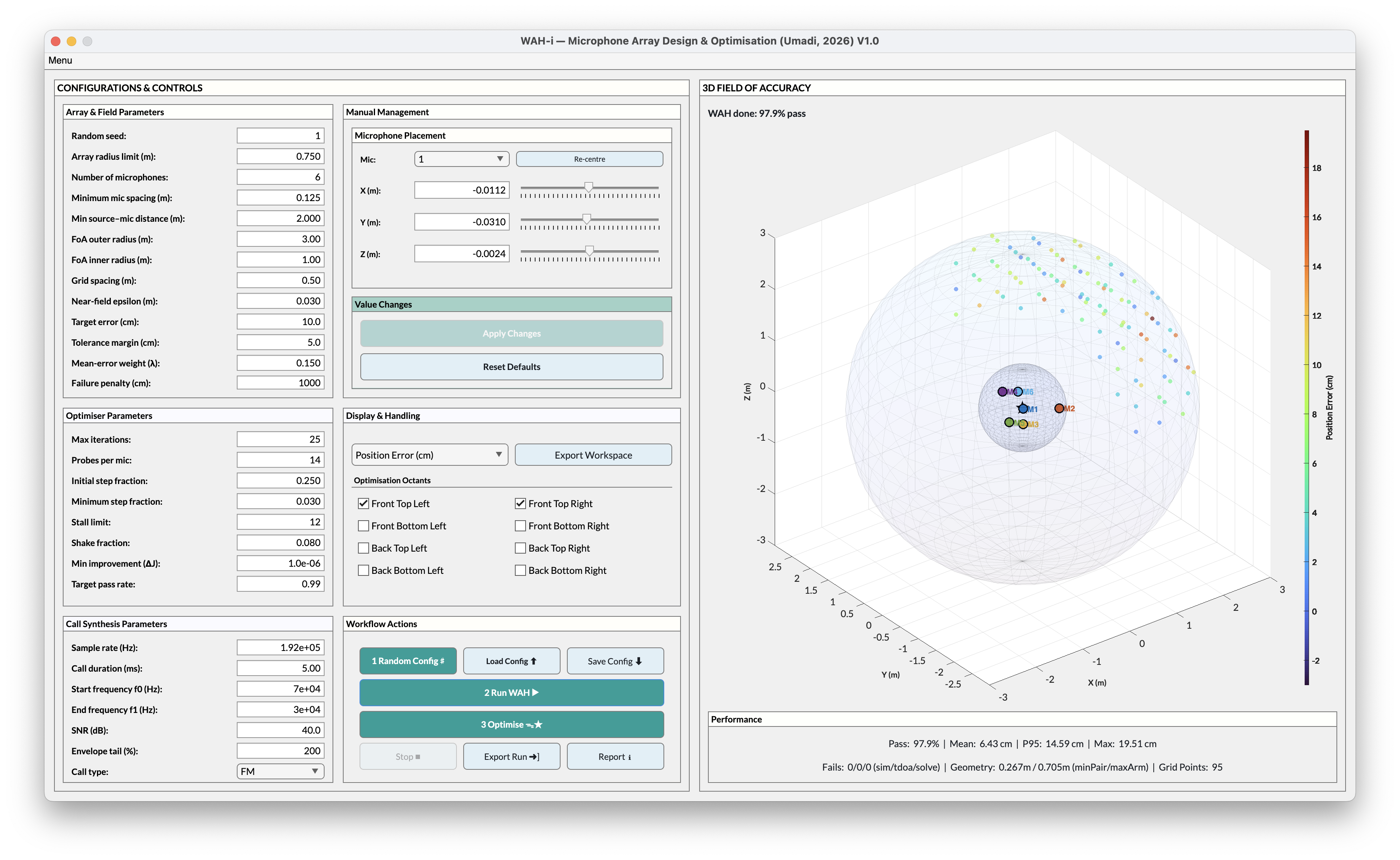
⬇ Download example high-performance microphone geometry (CSV) (output from the above run)
6) Review, export, and save
After optimisation:
- View the report to inspect improvements and convergence
- Save the report for documentation or sharing
- Export .mat file for deeper analysis in MATLAB or Python
- Save Config to retain the optimised microphone geometry for future designs
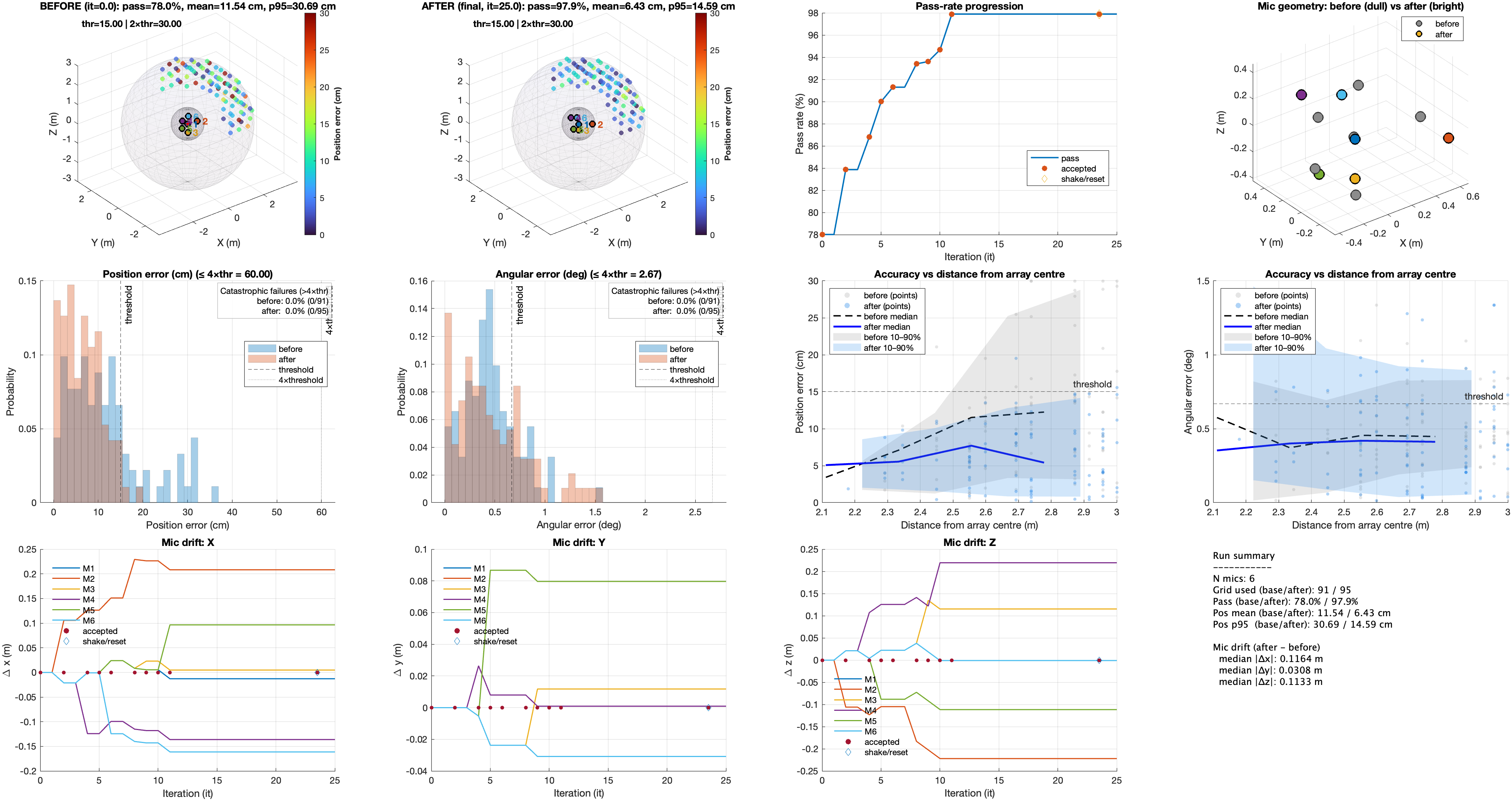

This workflow supports rapid iteration while maintaining full reproducibility.
Advanced workflows — batch runs and analyses
For large-scale comparisons or paper-level analyses:
- The repository folder
mat/contains batch-run and analysis scripts - These scripts reproduce the full analysis pipeline used in the research paper (see linked publication)
Batch workflows enable:
- Comparison of multiple geometries
- Repeated optimisation runs
- Statistical analysis of convergence and robustness
This is a more advanced workflow and benefits from substantial computational resources.
Design philosophy
WAH-i is intentionally designed so that single-geometry GUI runs are sufficient for most field researchers. Batch analyses are provided for method development, benchmarking, and large comparative studies.